- Acquire your access code either directly from your instructor or from your institution’s bookstore.
The access code will be a 16-character alphanumeric code (ex. “7GB9FA1KV4MCYKLH”).
- Go to the AHIMA Learning Center in any browser other than Internet Explorer (IE is no longer supported by AHIMA’s login page).
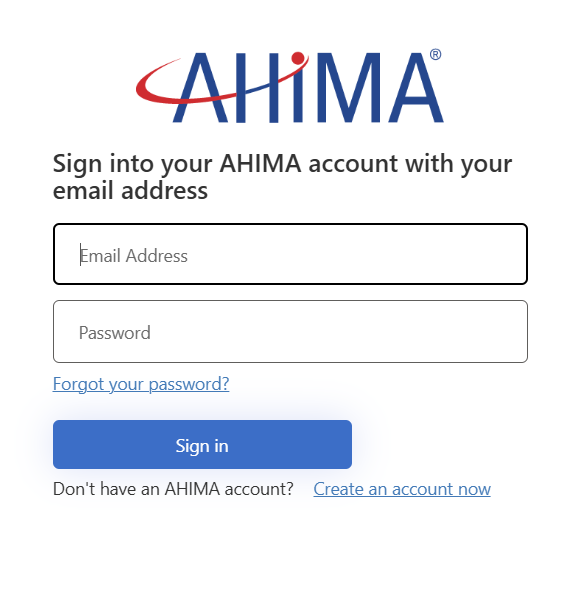
Click the “Login” button in the upper-right and on the window that appears log in with your current AHIMA credentials. Once logged in you will be taken directly to your Learning Center page.
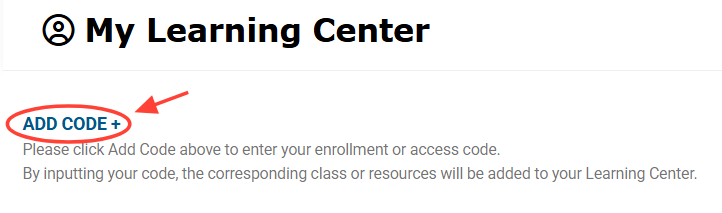
- On the Learning Center page click the “ADD CODE +” button.
This will open a new page asking for you to please input the enrollment code you received from your instructor or bookstore
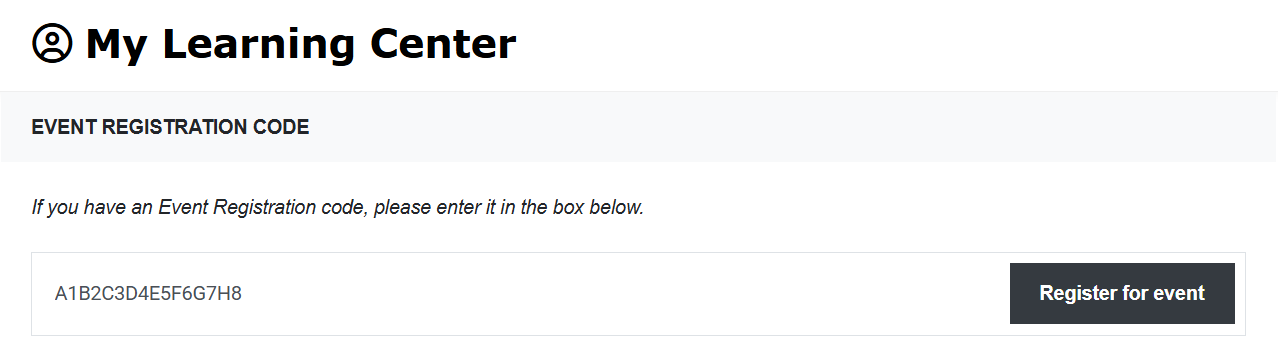
- Once on this page, enter your redemption code then click “Register for event”.
Currently the VLab codes are formatted as 16 character alphanumeric codes, all letters are capitalized.
- Once the code is accepted you will see a success message, and your course will appear on the Learning Center page automatically.
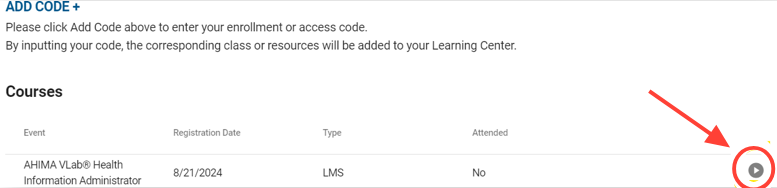
If you don’t see the course appear right away please refresh the page; click on the “Access Content” button to the right of the course to open it:
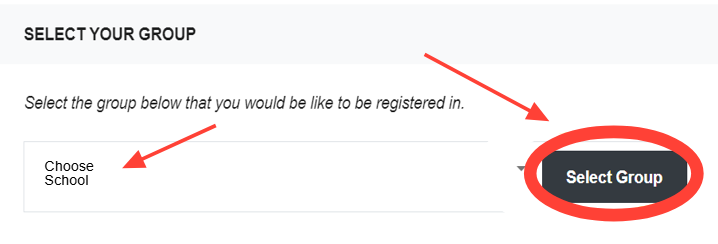
- If you received VLab access from a bookstore or the AHIMA web store, a new page will open that asks you to “Select Your Group” (in the case of VLab this means select your school).
Choose your school from the drop-down menu then click “Next”.
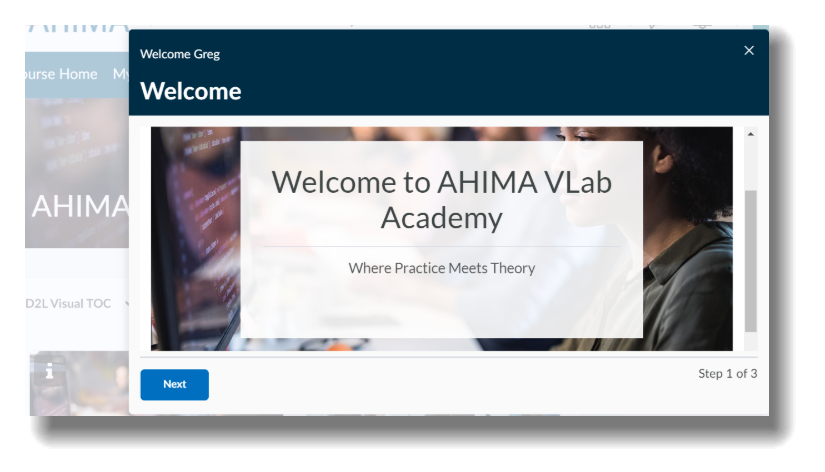
- After a few seconds you will be taken directly into your course, where you may begin your experience by viewing the Welcome widget before accessing the appropriate category for your training, as advised by your instructor.
If you are not automatically taken directly into your course after 30 seconds, please refresh the Learning Center page and try accessing the course again.