- Locate your book resources access code.
Print books
The Student Resources access code is located inside the front cover of the book along with redemption instructions. If the top right corner of a book’s front cover says “Downloadable Resources” or “Online Assessments,” this book will have a Student Resources access code.
ebooks
Follow the steps below to retrieve your access code.
For Students:
Redeem your ebook. (See: How do I view my ebook?)
Open the VitalSource Bookshelf online.
Find your title and hover over it to select Open Book.
Click the “access code information” prompt in upper right corner.
Follow the instructions to reveal your access code and copy it to your clipboard.
For Instructors:
Locate the access code provided to you by your AHIMA Sales Representative or fill out this form to request a code.
- Visit my.ahima.org/learningcenter.
- Log in or create an AHIMA account.
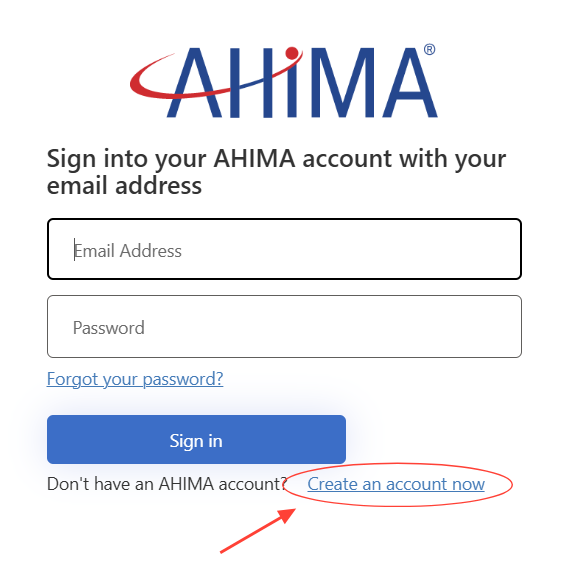
- On the Learning Center page click the “ADD CODE +” button.
This will open a new page asking for you to please input the enrollment code you received from your instructor or bookstore.
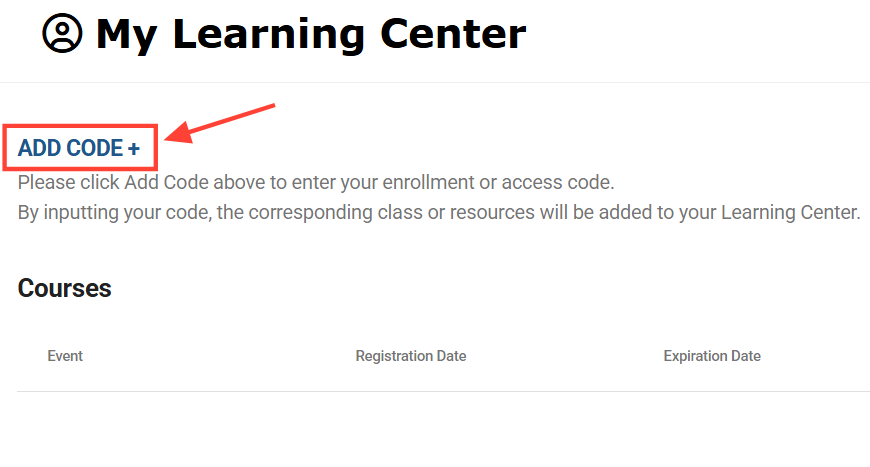
- Type in the book’s access code and click "Register For Event".
Your book’s title will now display as one of your Current Classes.
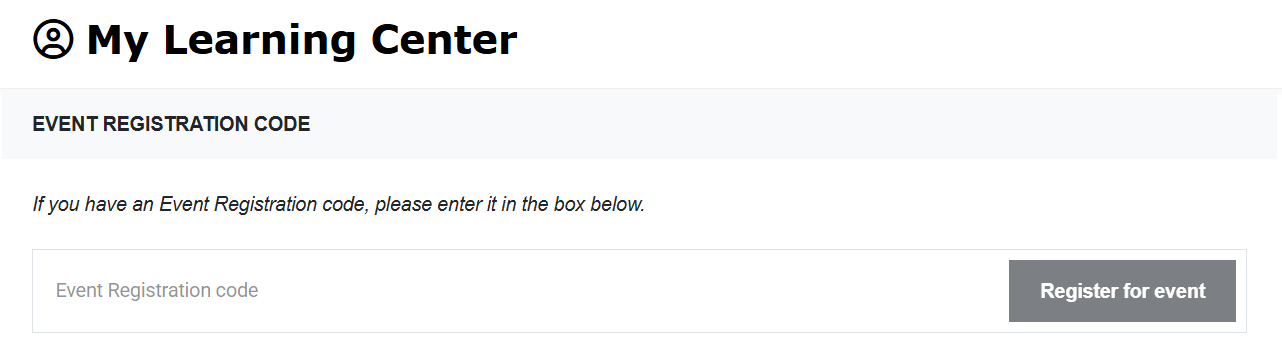
- Once the code is accepted you will see a success message, and your course will appear on the Learning Center page automatically.
If you don’t see the course appear right away please refresh the page, then click on the “Access Content” button to the right of the course to open it.
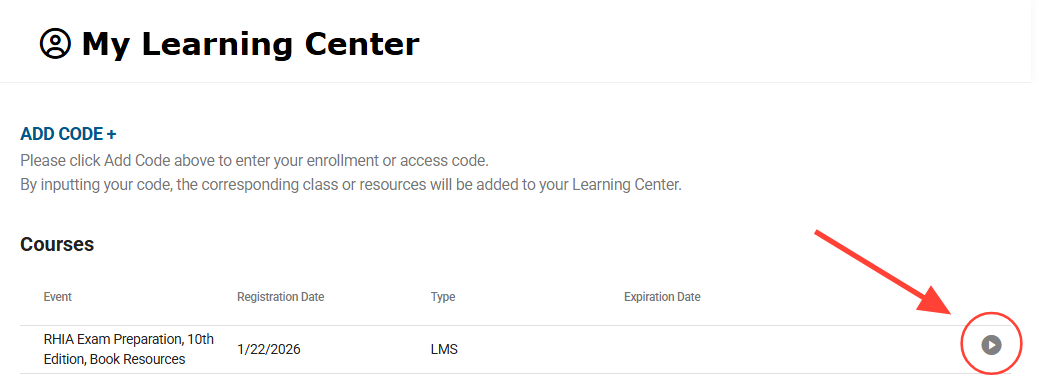
- Select “Get Started” or “Launch Unit” to view or download the book’s resources as needed, without limit. Book resources will remain on your myAHIMA account for the life of the book’s edition (one year after the next edition publishes).