About this Guide
- This guide starts with the Overview Page Details section below, which details the page that first opens when you access your Book Resources product.
- Review the Accessing Resources information for everything you will need to know about downloadable resources.
- The Other Navigation Options section details other, optional navigational features of this platform.
- The Navigating Assessments sections offer information specific to certain titles that have interactive assessment features.
- Please note: Not all Book Resources include assessments
Overview Page Details
- Review the overview screen
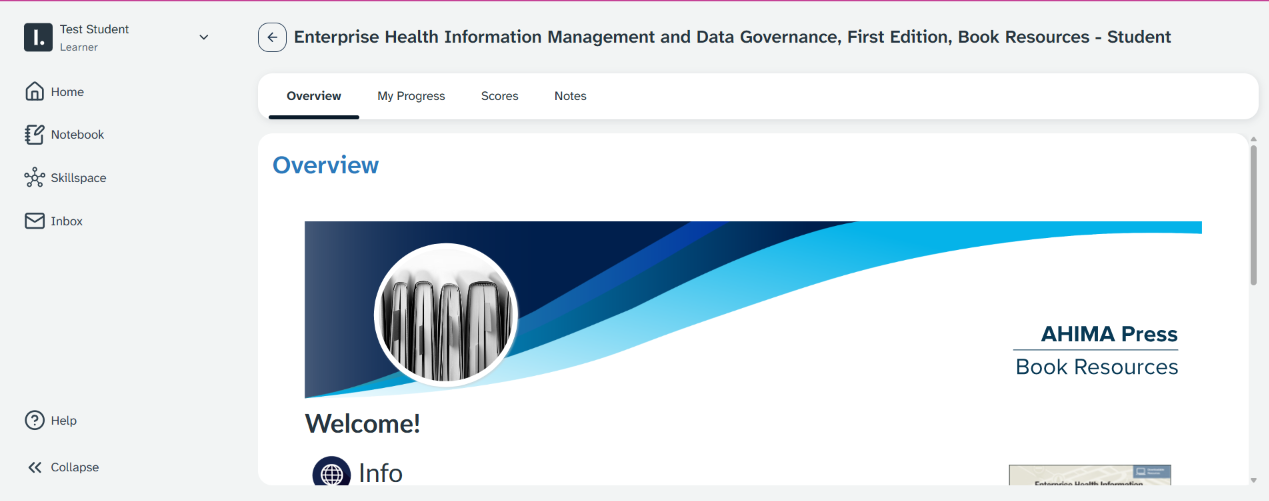
When you first open a Book Resources product you will see the overview screen.
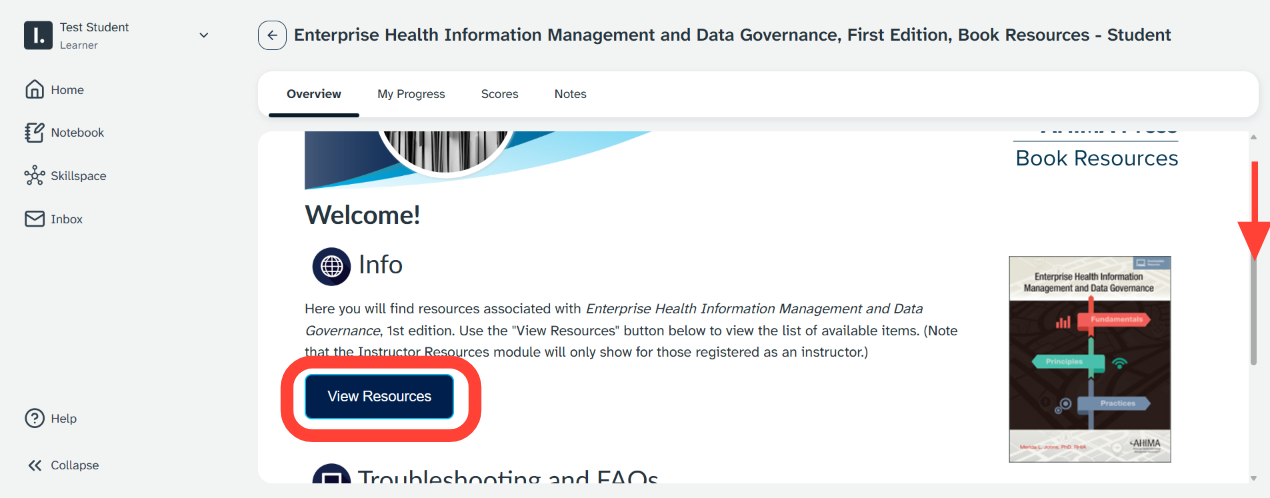
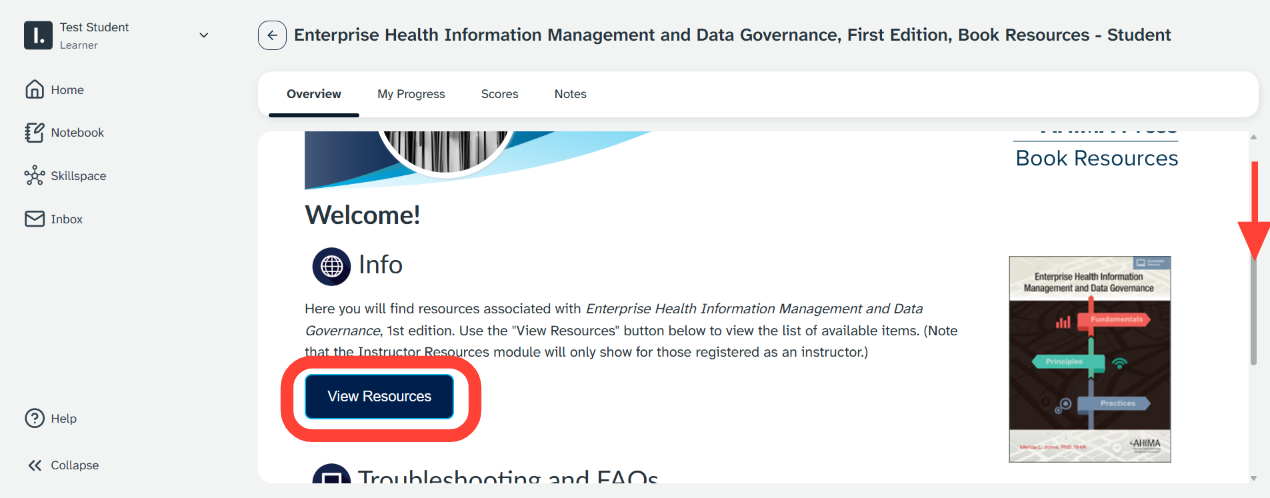
- View resources
At any time you can select View Resources to go directly to the content.
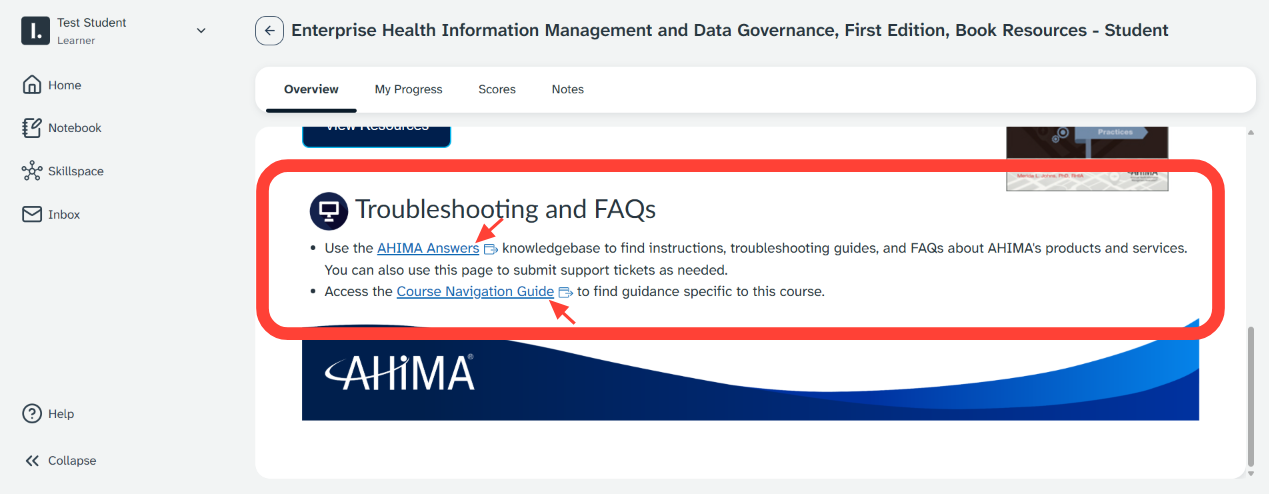
- Access troubleshooting and FAQs
In the Troubleshooting and FAQs area you can find:
- A link to AHIMA Answers -
- Further instructions
- Troubleshooting guides
- FAQs about AHIMA products and services
- Support ticket access
- The course navigation guide for this product.
- It is recommended that you bookmark these resources.
- A link to AHIMA Answers -
Accessing Resources
- View resources
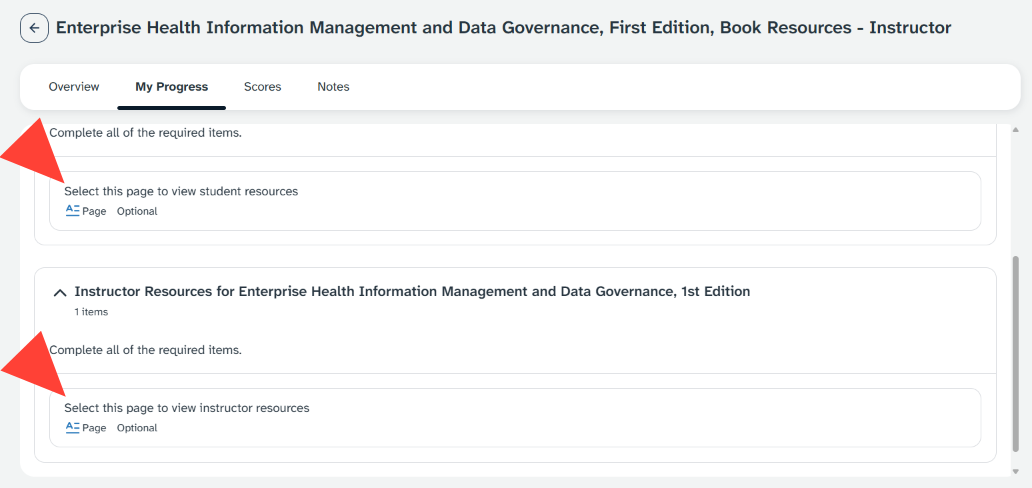
Select View Resources from the Overview screen to see the "My Progress" view of the Book Resources.
- Navigate to a specific resources page
Students will typically click or tap on the tab labeled "Select this page to view student resources".
- Download resources
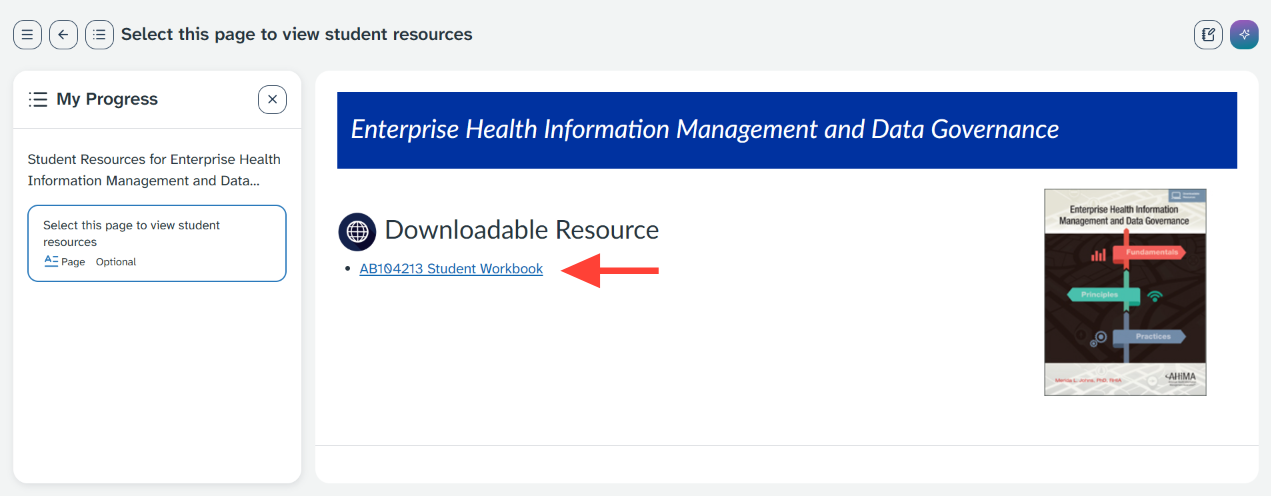
Once you are viewing the resources page, select any of the links provided to download your resources as desired.
- Return to "My Progress" page view (if needed)
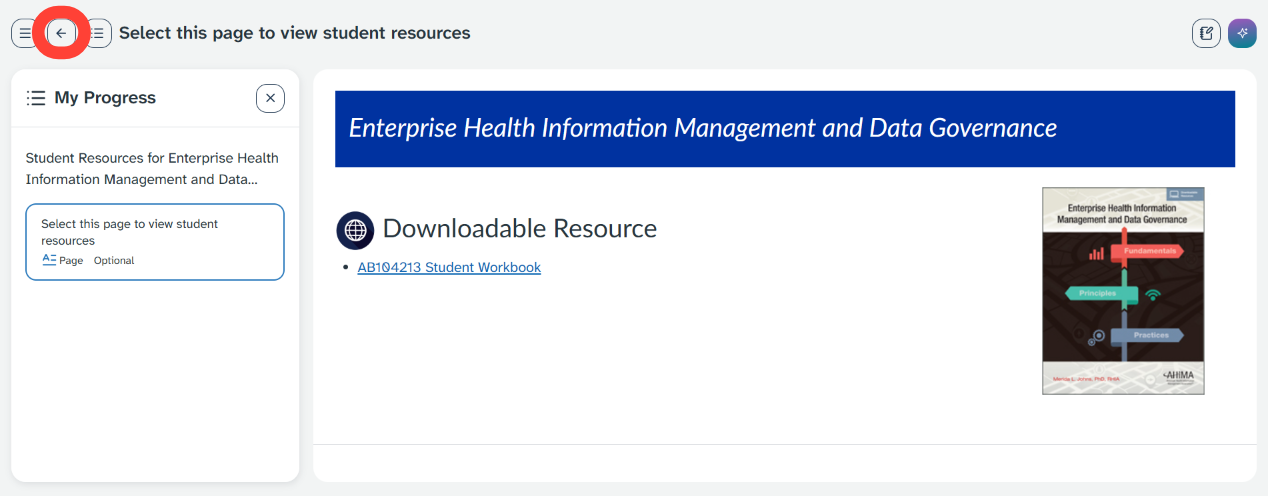
- Instructors in particular may find it useful to navigate back to the full product view to navigate between student and instructor resource pages.
- One method of doing so is to select the left arrow in the upper left-hand corner to go to the My Progress page view of your learning product.
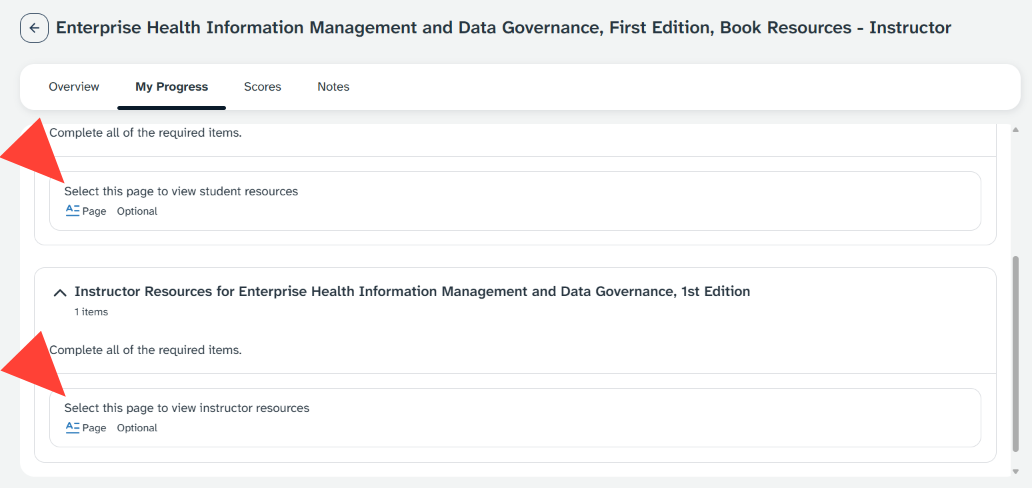
You would then return to Step 2 above to select the resource page you are looking for.
Other Navigation Options
- Use the top left options as needed when viewing a resources page
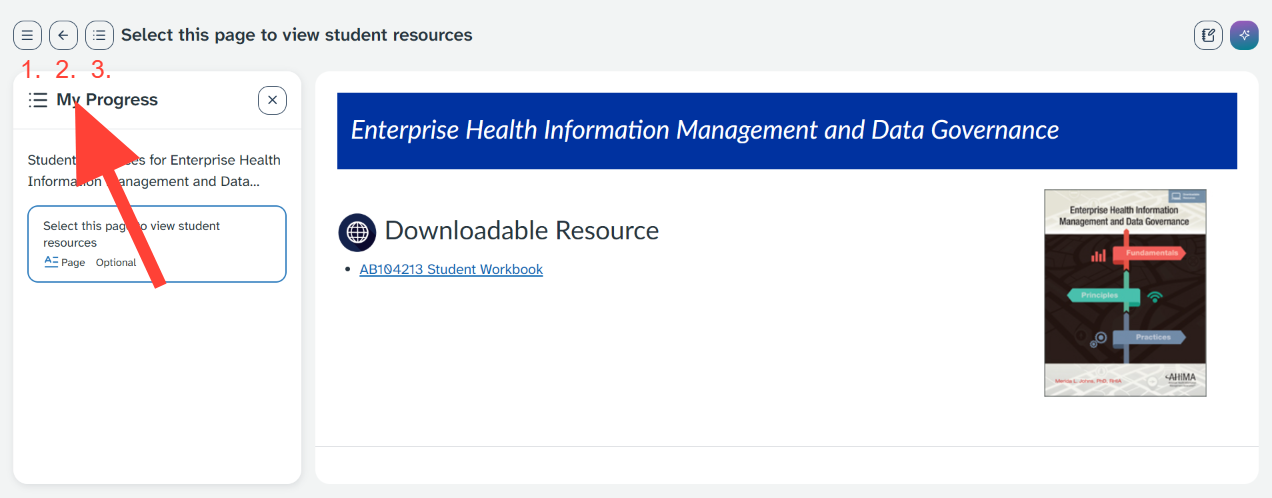
- In the top left corner of the platform-level controls you will see three buttons:
- The left-hand most hamburger button (three lines without dots) opens a lightbox-style panel with platform-level navigation options.
- The left facing arrow will bring you to the My Progress page view of your learning product.
- The button on the right-hand side of these three options opens and closes the My Progress left-hand navigation panel.
- Understand the platform level options
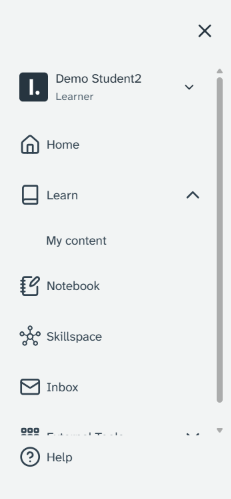
- The Home button will bring you to a dashboard view of all learning products you have purchased from AHIMA. On this page you will also see notifications, skills, time spent on the platform, and a count of completed activities.
- Use the Learn dropdown My Content link to view a condensed view of your learning products.
- Use the In Progress, Saved, and Completed tabs to filter your content.
- Notebook is not an applicable tool for this learning product.
- Skillspace is an area you can use to track your skill profile. While a useful tool, please note that information tracked here is not transferred to the MyAHIMA Hub or otherwise recorded as part of your AHIMA profile. It is only for your personal use within the AHIMA online learning platform.
- If AHIMA has a message for you regarding your learning product it will be pushed out through the Inbox. However, outgoing messages are not an applicable use of the Inbox for this course. Use the AHIMA Answers knowledge base to find instructions, troubleshooting guides, and FAQs about AHIMA's products and services. You can also use the AHIMA Answers page to submit support tickets as needed.
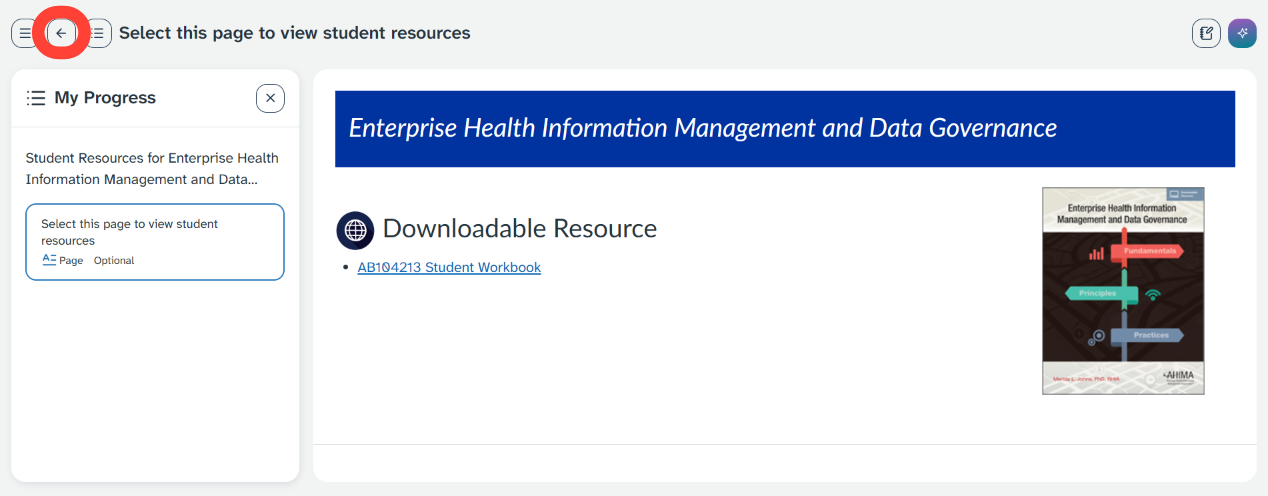
- Using the left facing back arrow.
- As described in the section above, you may select the left arrow in the upper left-hand corner to go to the My Progress page view of your learning product.
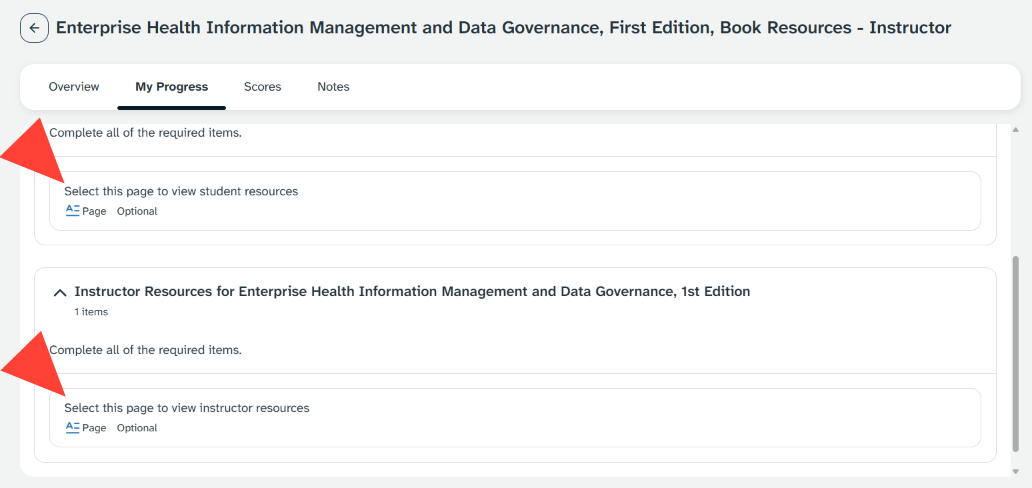
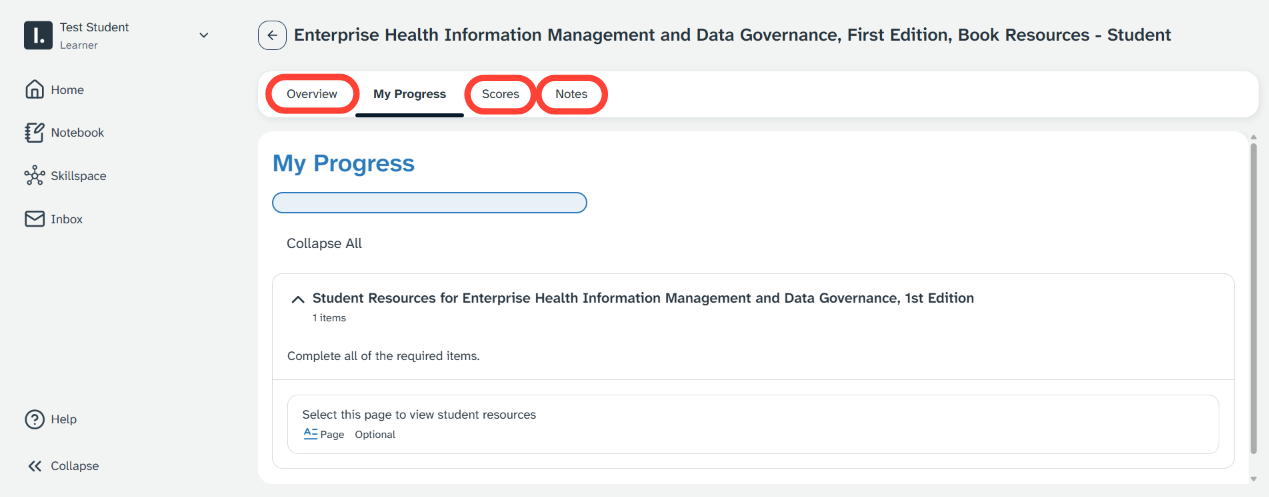
- Unlike the My Progress left-hand panel, the My Progress page view shows a complete outline of the learning product.
- Select the resources page you want to view, as shown in the second screenshot.
- Using the My Progress panel button.
The button on the right-hand side of the three options in the upper left opens and closes the My Progress left-hand navigation panel.
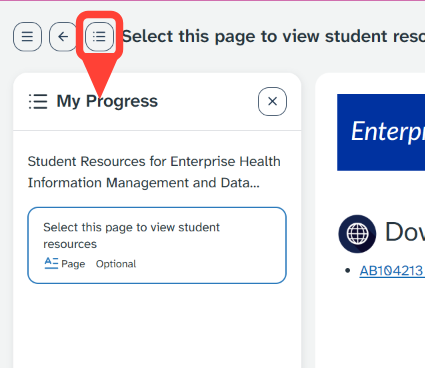
- In the top left corner of the platform-level controls you will see three buttons:
- Use the top bar navigation from the My Progress page view.
- Recall that you can get to the My Progress page view by using the left arrow in the upper left corner of a resources page.
- From this page the top bar navigation options include the following:
- The Overview link will return you to the opening screen of your book resources.
- Scores is not an applicable feature for this learning product.
- Notes is also not an applicable feature for this learning product.
Navigating Assessments