About this Guide
- This guide starts with the Overview Page Details section below, which details the page that first opens when you access your course.
- Review the Navigating and Completing Your Presentations information below for everything you will need to know to navigate and complete the main presentations.
- The Course Completion section explains what to expect from the Final Exam.
- The Other Navigation Options section details other, optional navigational features of this platform.
Overview Page Details
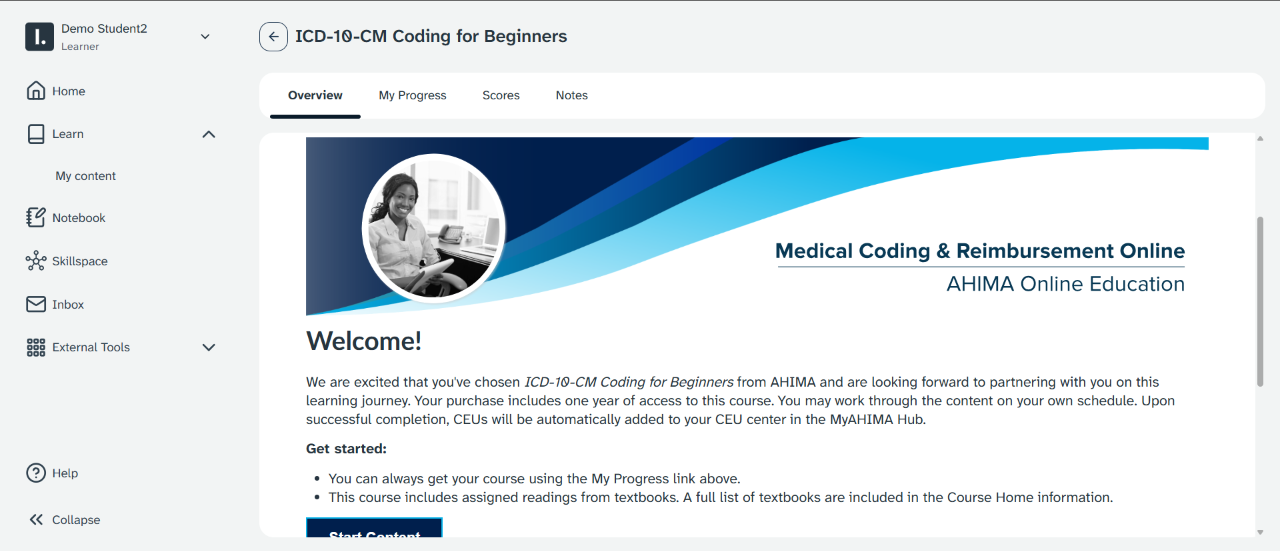
- Review the overview screen
When you first open your course you will see the overview screen.
- Access content
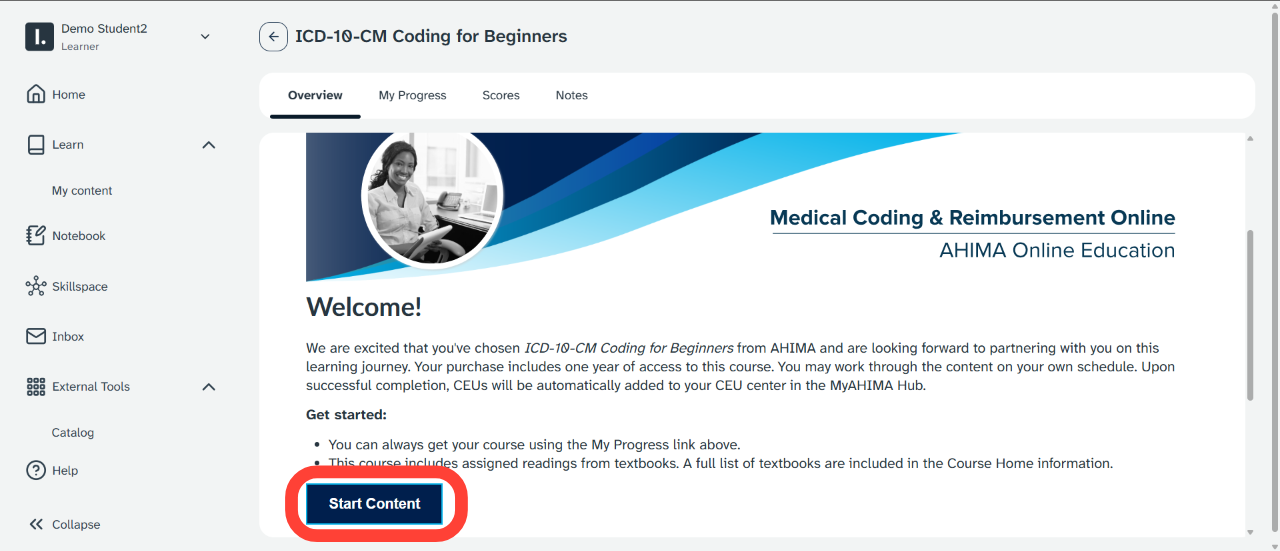
At any time you can select the Start Content to go directly to the opening, "Course Home" presentation.
- Read course information
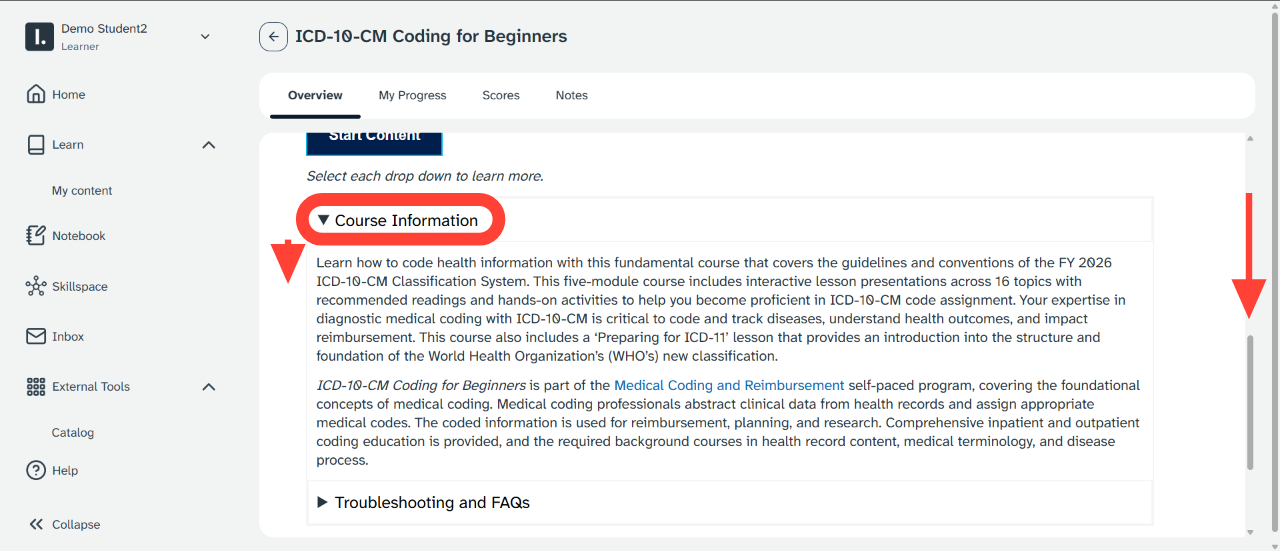
On the overview you may also expand Course Information to read additional information about the learning product.
- Access troubleshooting and FAQs
Open the Troubleshooting and FAQs accordion for:
- A link to AHIMA Answers -
- Further instructions
- Troubleshooting guides
- FAQs about AHIMA products and services
- Support ticket access
- The course navigation guide for this product.
You may bookmark these resources if you wish.
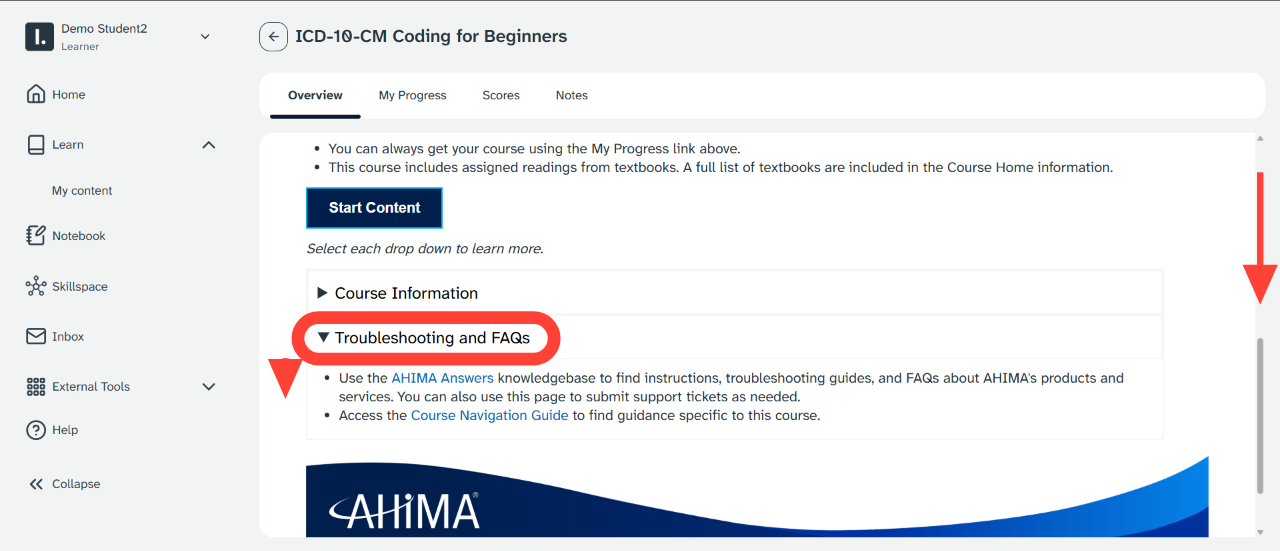
- A link to AHIMA Answers -
Navigating and Completing Your Presentations
- Understand the difference between the presentation viewing and navigation area and the platform controls
- All buttons and navigational options found inside the presentation viewing area control the slides within the presentation.
- Buttons outside the presentation viewing area control navigation within the platform. For example, the Next button below the presentation will advance to the next presentation.
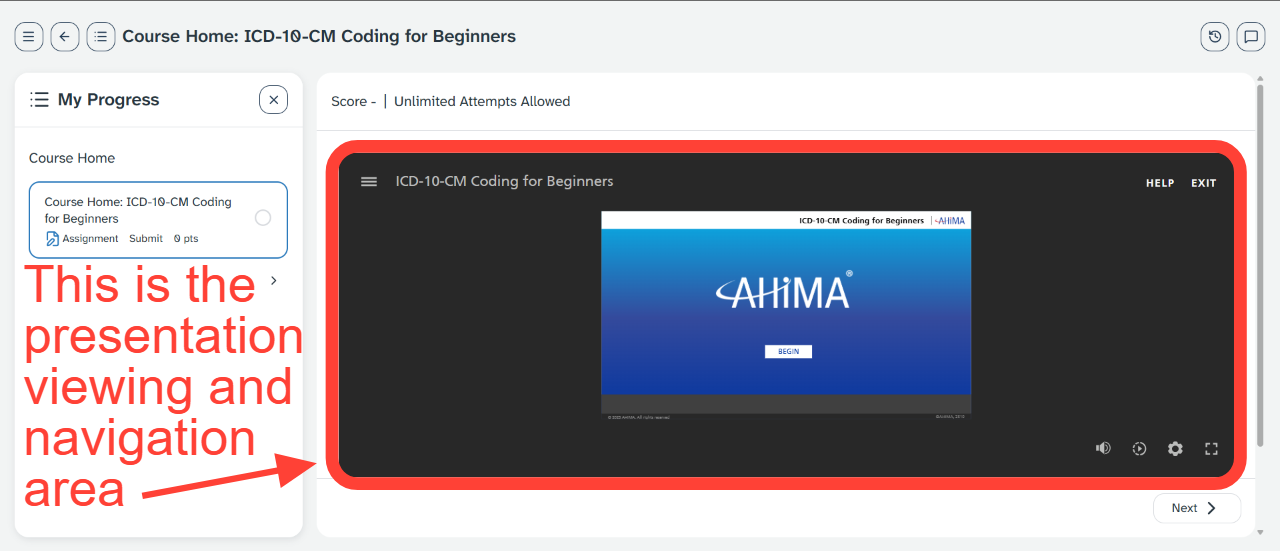
- Expand the presentation to full screen
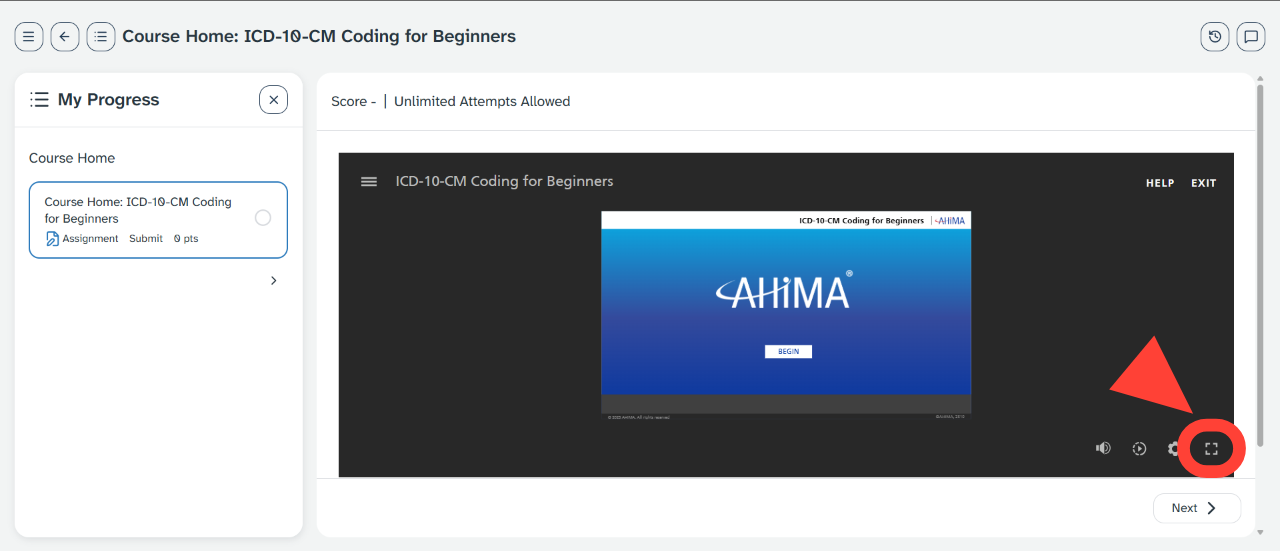
- Many learners will prefer to expand the presentation viewing area to full screen for better visibility.
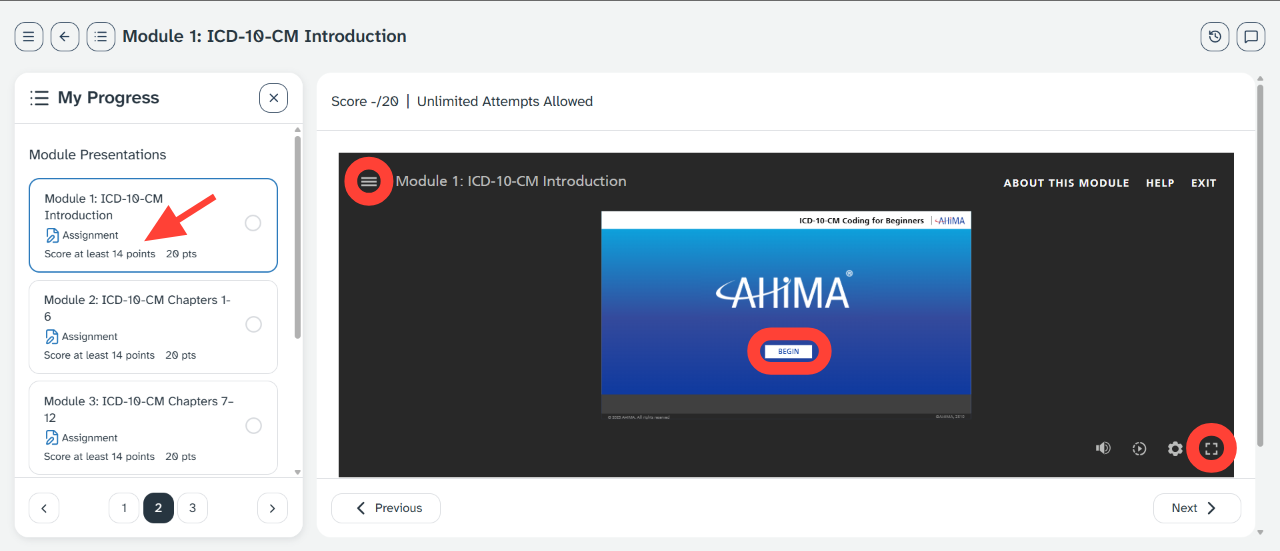
Use the Enter full-screen button found in the lower right-hand corner of the presentation viewing area to do so.
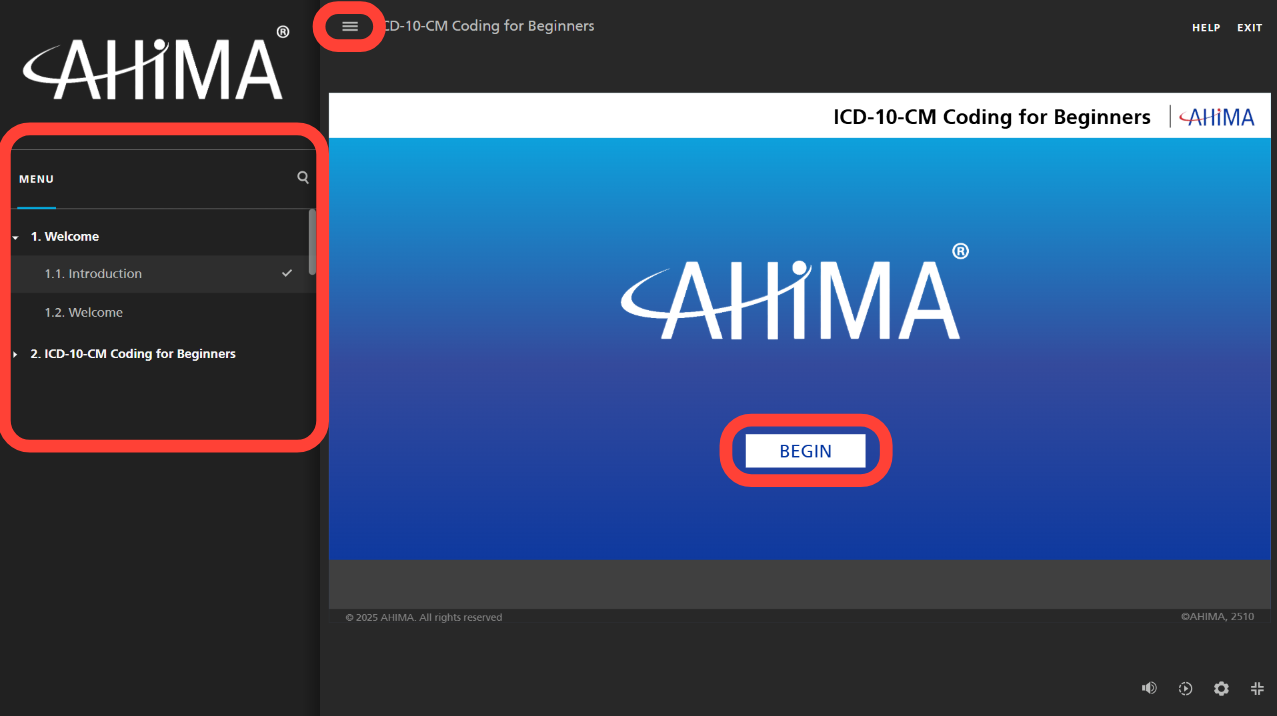
- Begin your presentation
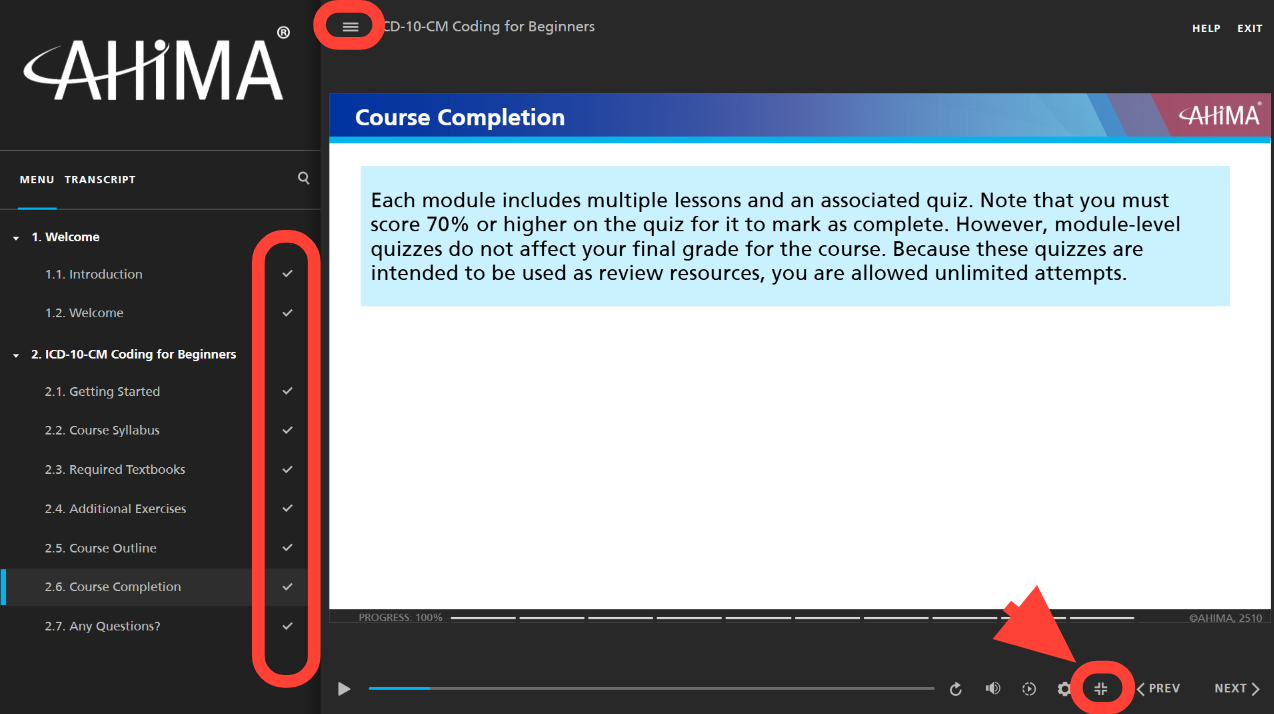
- The presentation may or may not open with the Table of Contents already open on the left side.
- You can choose to open or close the Table or Contents using the hamburger button found top left.
- Select the Begin button to start viewing the presentation content.
- Complete the Course Home presentation requirements
- The first presentation is typically called Course Home, which details important information about your course.
- To complete a Course Home presentation you must view all slides.
- Viewed slides are indicated by a check mark in the Table of Contents.
- Once you have viewed all slides, you can use the Exit full-screen button found bottom right to return to the main learning platform interface.
- Confirm completion, move to the next presentation
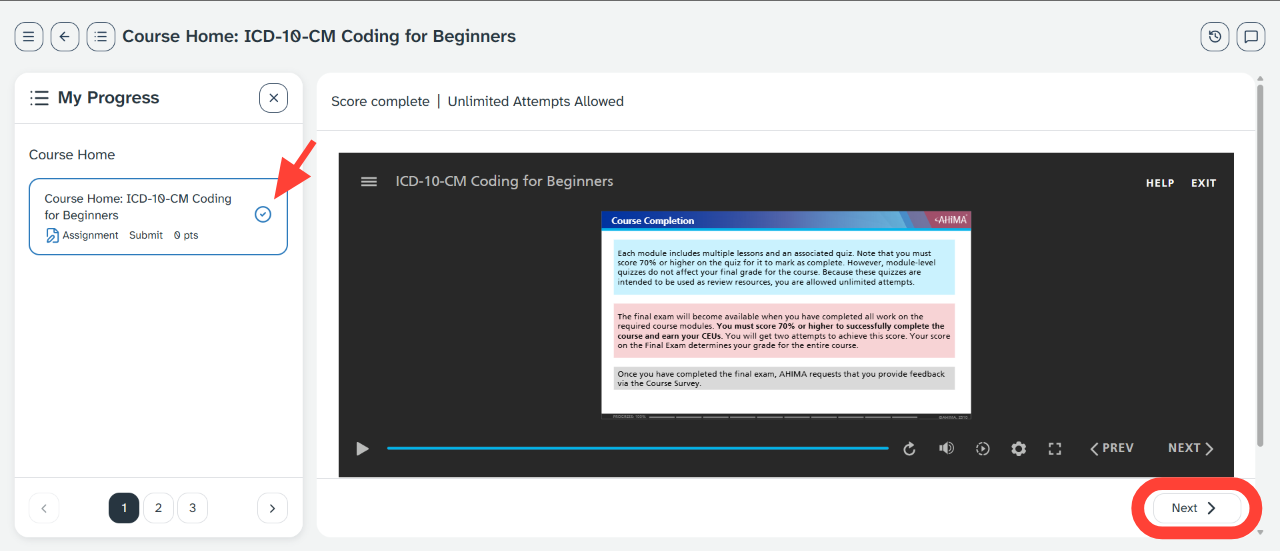
- Completion will be indicated by a blue checkmark next to the presentation title in the the left-hand My Progress panel.
- To move to the next presentation, use the Next button below the presentation viewing area.
- Start the module presentations
- You will now see the Module Presentations in the My Progress left side panel and the next presentation ready to go in the presentation viewing area.
- Note the "Score at least" points information.
- Use the controls in the presentation viewing area to get started.
- Complete the module presentations
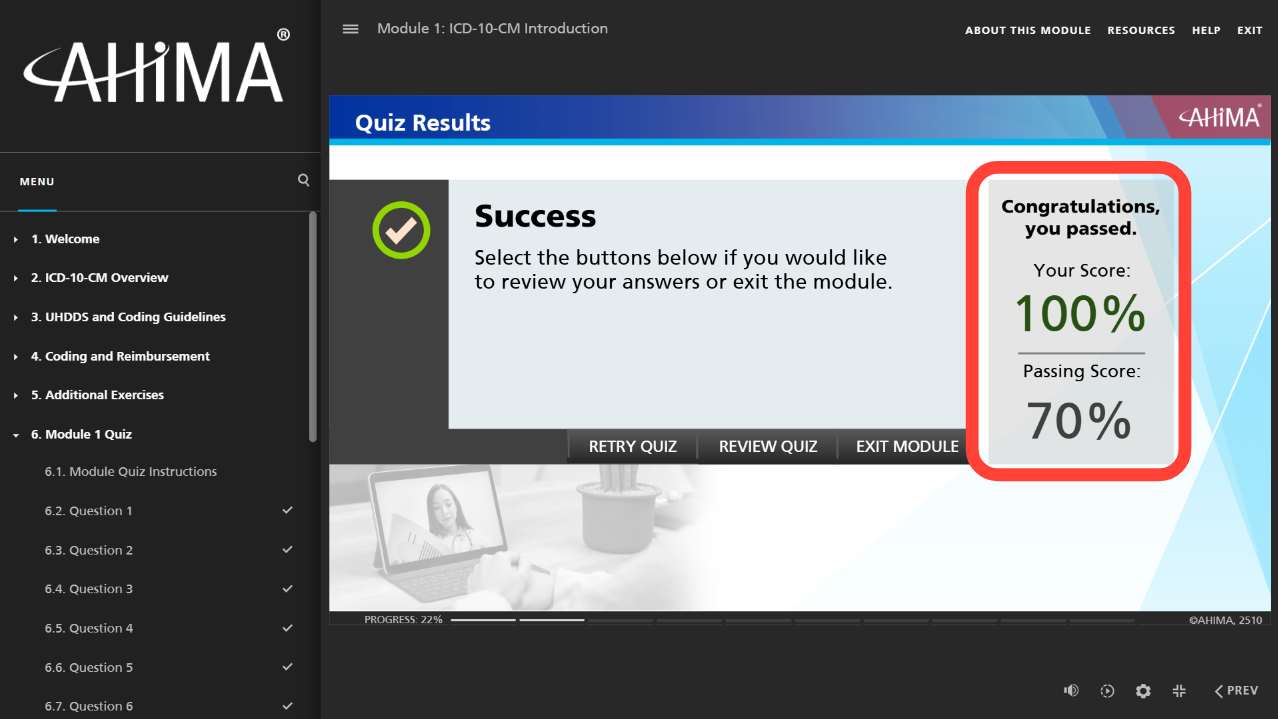
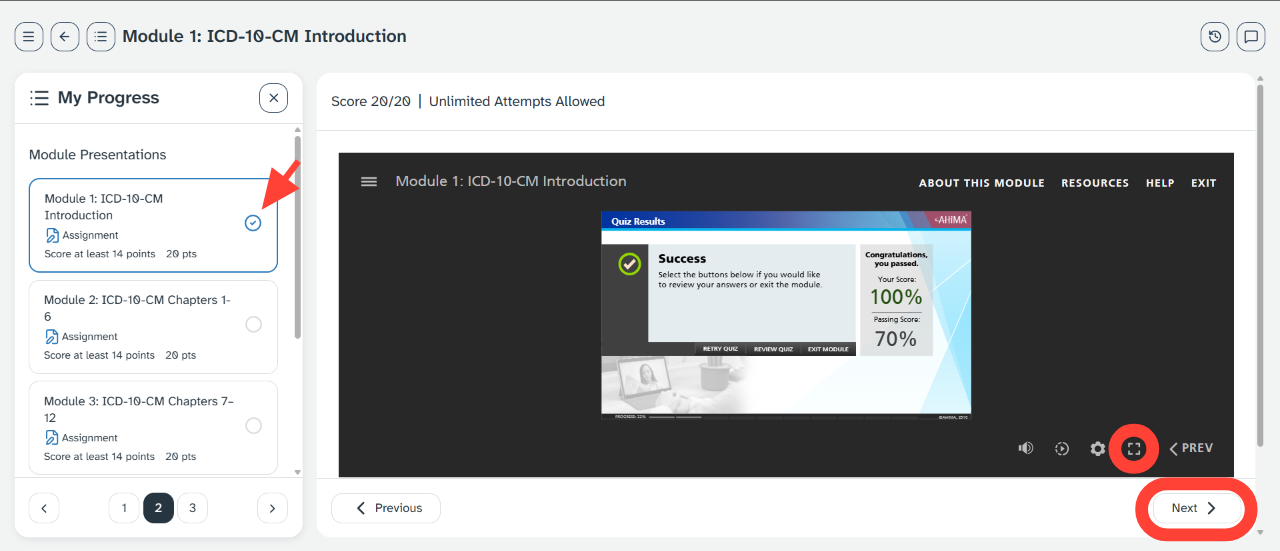
- Unlike the Course Home presentation, completion of module presentations is based on your quiz score.
- As shown above, you can see the "score at least" points in the My Progress side panel view. "Score at least" are the number of questions (i.e. points) you will need to answer correctly in the quiz for the presentation to mark as complete.
- On the Quiz Results page within the presentation, your score will be represented as a percentage, and give indication of whether you passed (in other words completed).
- Move to the next presentation
- When you are ready to move to the next presentation, minimize the presentation if needed.
- Then use the Next button outside of the presentation viewing area.
Course Completion
- Navigate to the Final Exam in the Course Completion unit
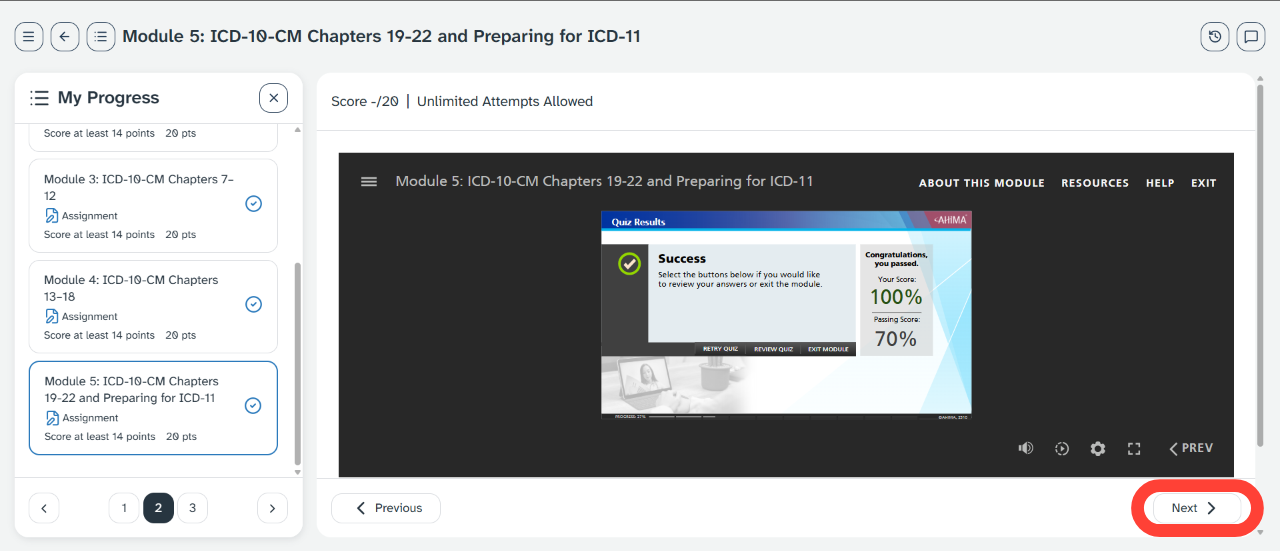
- When you are finished with the final module presentation and are ready to take the final exam, select Next in the platform level options outside of the presentation viewing area.
- Enter the Final Exam
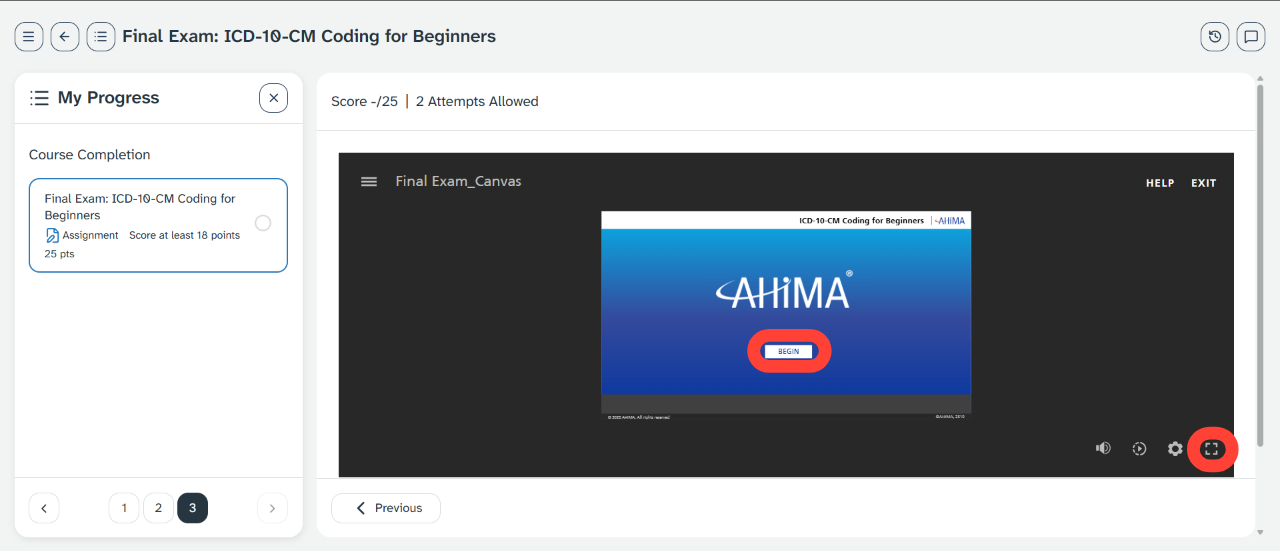
- Navigating the Final Exam is very similar to the Module Presentations; While working on the exam only use the navigation options within the presentation viewing area.
- Most learners will start the Final Exam by selecting the Expand full-screen button.
- You will then select the Begin button.
- Read the exam intro slide
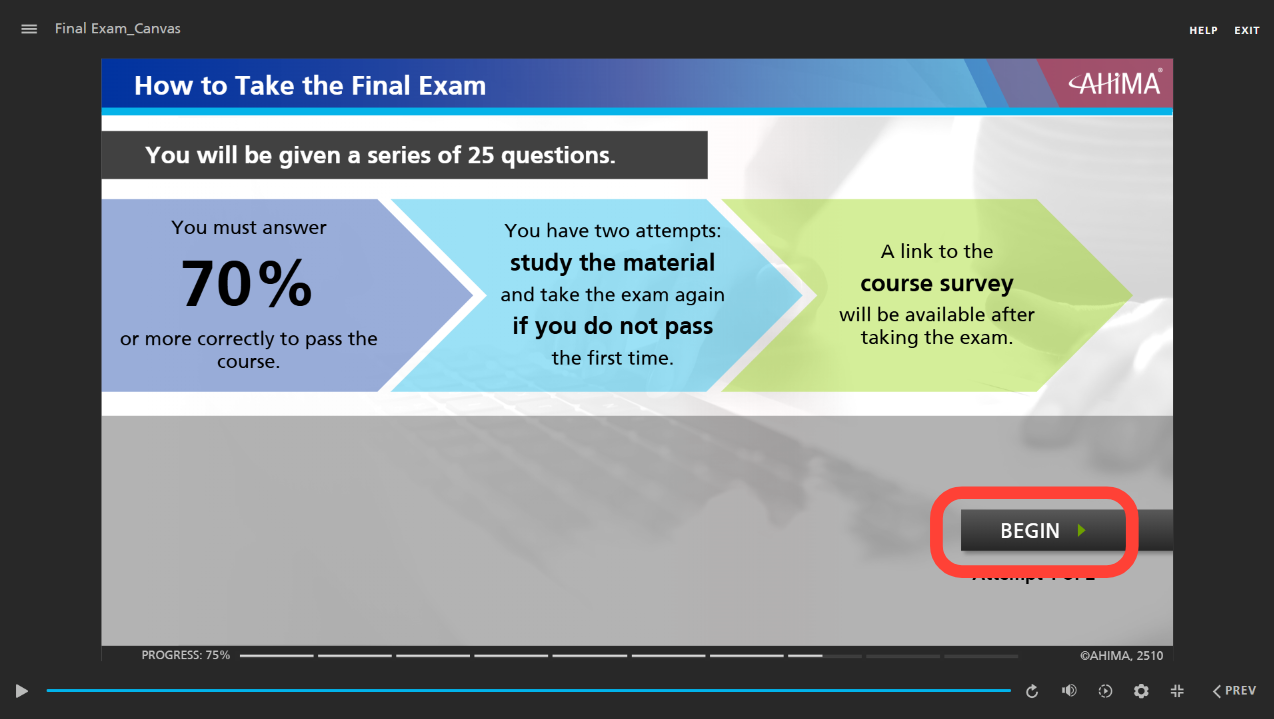
- After clicking Continue, you will see a "How to take the Final Exam" slide.
- Note that the specifics of your Final Exam may be different than shown below.
Once ready to start, select BEGIN.
- Take the course survey and access CEUs
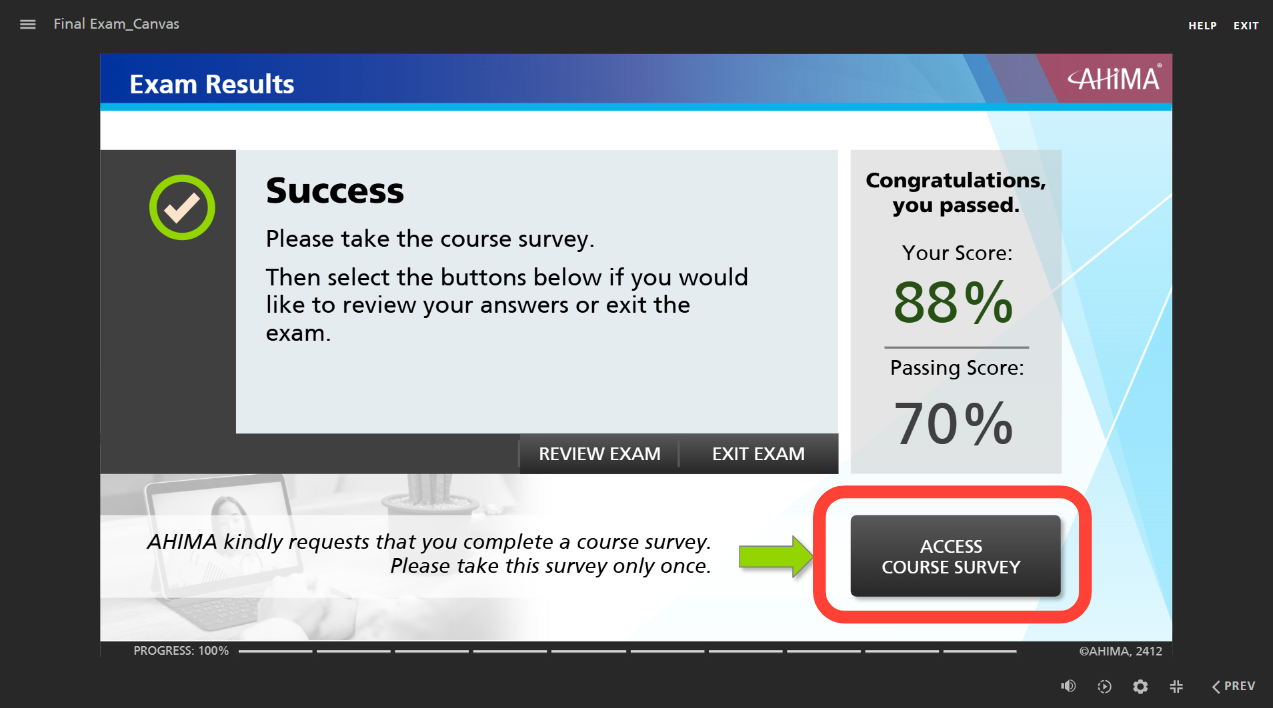
- After completing the Final Exam you will be asked to complete a Course Survey.
If you passed the Final Exam, your CEUs will post to the AHIMA CEU Center within 24 hours.
Other Navigation Options
- Use the top left options as needed when viewing a presentation
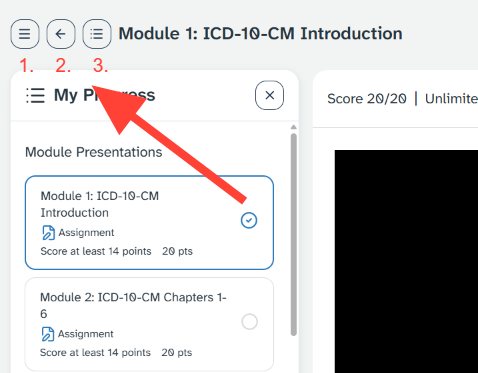
- In the top left corner of the platform level controls you will see three buttons:
- The left-hand most hamburger button (three lines without dots) opens a lightbox-style panel with platform-level navigation options.
- The left facing arrow will bring you to the My Progress page view of your learning product.
- The button on the right-hand side of these three options opens and closes the My Progress left-hand navigation panel.
- Understand the platform level options
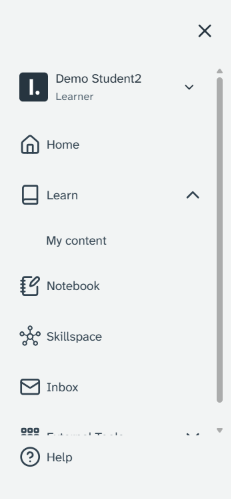
- The Home button will bring you to a dashboard view of all learning products you have purchased from AHIMA. On this page you will also see notifications, skills, time spent on the platform, and a count of completed activities.
- Use the Learn dropdown My Content link to view a condensed view of your learning products.
- Use the In Progress, Saved, and Completed tabs to filter your content.
- Notebook is not an applicable tool for this learning product.
- Skillspace is an area you can use to track your skill profile. While a useful tool, please note that information tracked here is not transferred to the MyAHIMA Hub or otherwise recorded as part of your AHIMA profile. It is only for your personal use within the AHIMA online learning platform.
- If AHIMA has a message for you regarding your learning product it will be pushed out through the Inbox. However, outgoing messages are not an applicable use of the Inbox for this course. Use the AHIMA Answers knowledge base to find instructions, troubleshooting guides, and FAQs about AHIMA's products and services. You can also use the AHIMA Answers page to submit support tickets as needed.
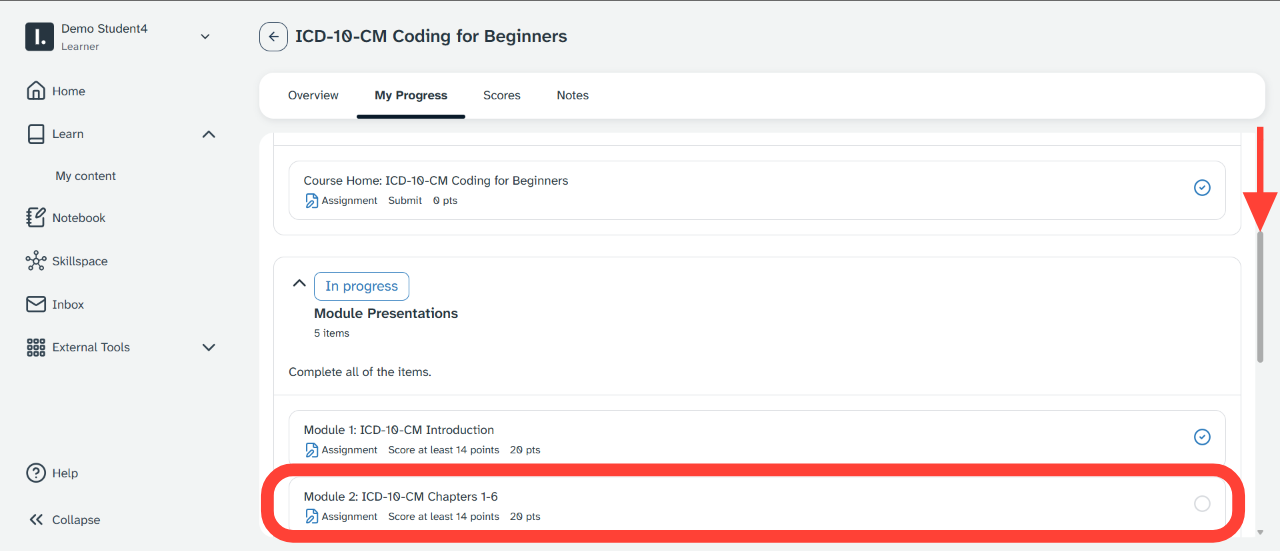
- Using the left facing back arrow.
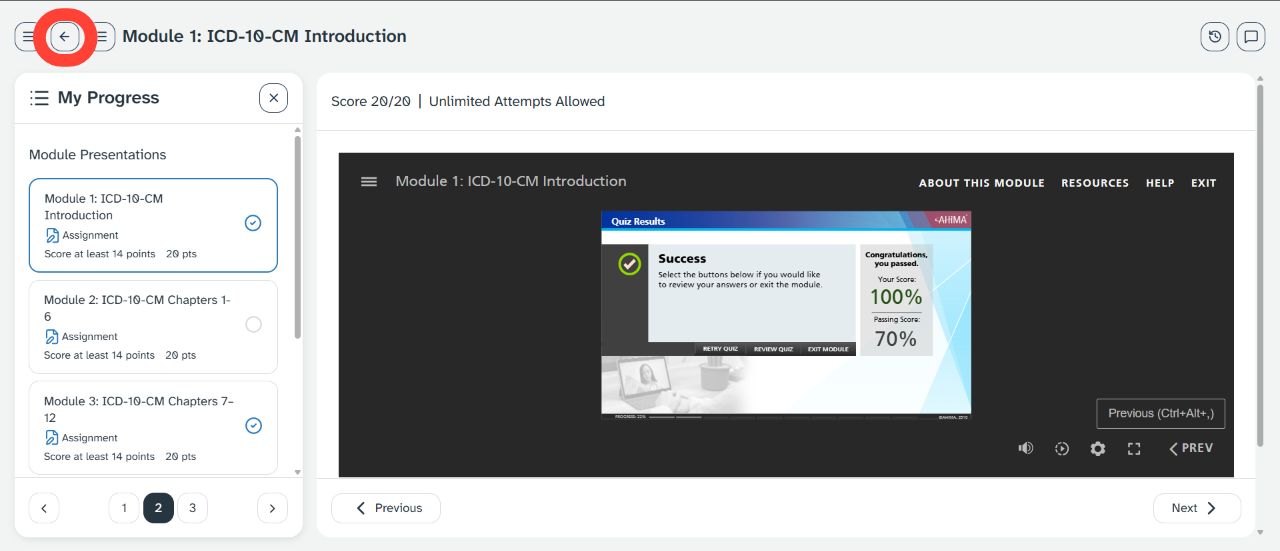
- Select the left arrow in the upper left-hand corner to go to the My Progress page view of your learning product.
- Unlike the My Progress left-hand panel, the My Progress page view shows a complete outline of the learning product.
- Note the "Score at least" points information.
- Select the presentation you want to view (such as Module 2 shown below), then use the controls within the presentation viewing area to start your presentation.
- Using the My Progress panel button.
The button on the right-hand side of the three options in the upper left opens and closes the My Progress left-hand navigation panel.
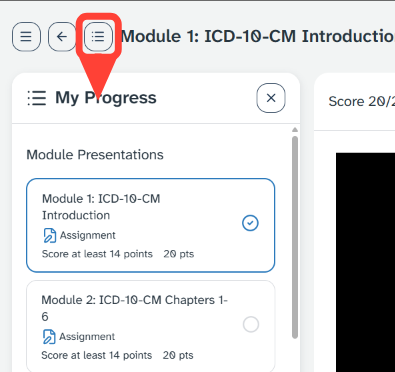
- In the top left corner of the platform level controls you will see three buttons:
- Use the top bar navigation from the My Progress page view.
- Recall that you can get to the My Progress page view by using the left arrow in the upper left corner from the presentation area.
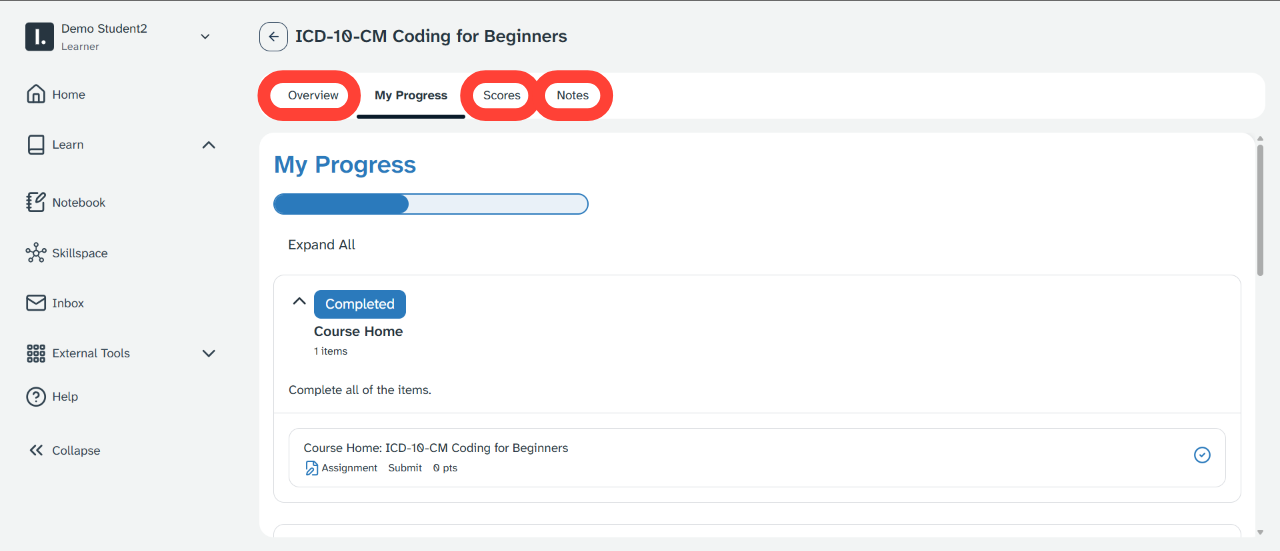
- From this page the top bar navigation options include the following:
- The Overview link will return you to the opening course page.
- The Scores link can be used to view your current scores on quizzes and the final exam, which will be the highest scoring attempt of all attempts made for a specific test so far.
- Your Total score is only based on the Final Exam.
- You may sort scores by name by clicking on the "Name" label at the top of that column.
- Notes is not an applicable feature for this learning products.